Invite speakers to your event
2 min read · updated 30 September 2026
You add who speaks at your event in the editor under Speakers. An invited person only appears on the event page once they have accepted. Until then, only you see them in the editor.
1Invite people with a profile
- 1On a computer, click Open editor in your event overview and open the Speakers card.
- 2Click Invite speaker and type the name into the Search person… field.
- 3Select the person. Optionally, you can add a role, such as Talk or Moderation, and write a sentence to them. Then click Invite.
If the person has claimed their profile, they get a notice in their Activity and a card in their inbox where they can accept or decline. In the editor you see the status: Invited, no answer yet, Accepted or Declined.
If you follow each other, the person often already appears above the search field under You follow each other. You invite them there with one click on Invite.
2Everyone else: the invitation link
If the person is not on chiro.events yet, you invite them with a link. It contains neither a name nor an address, and you send it yourself, by messenger, e-mail or however you like.
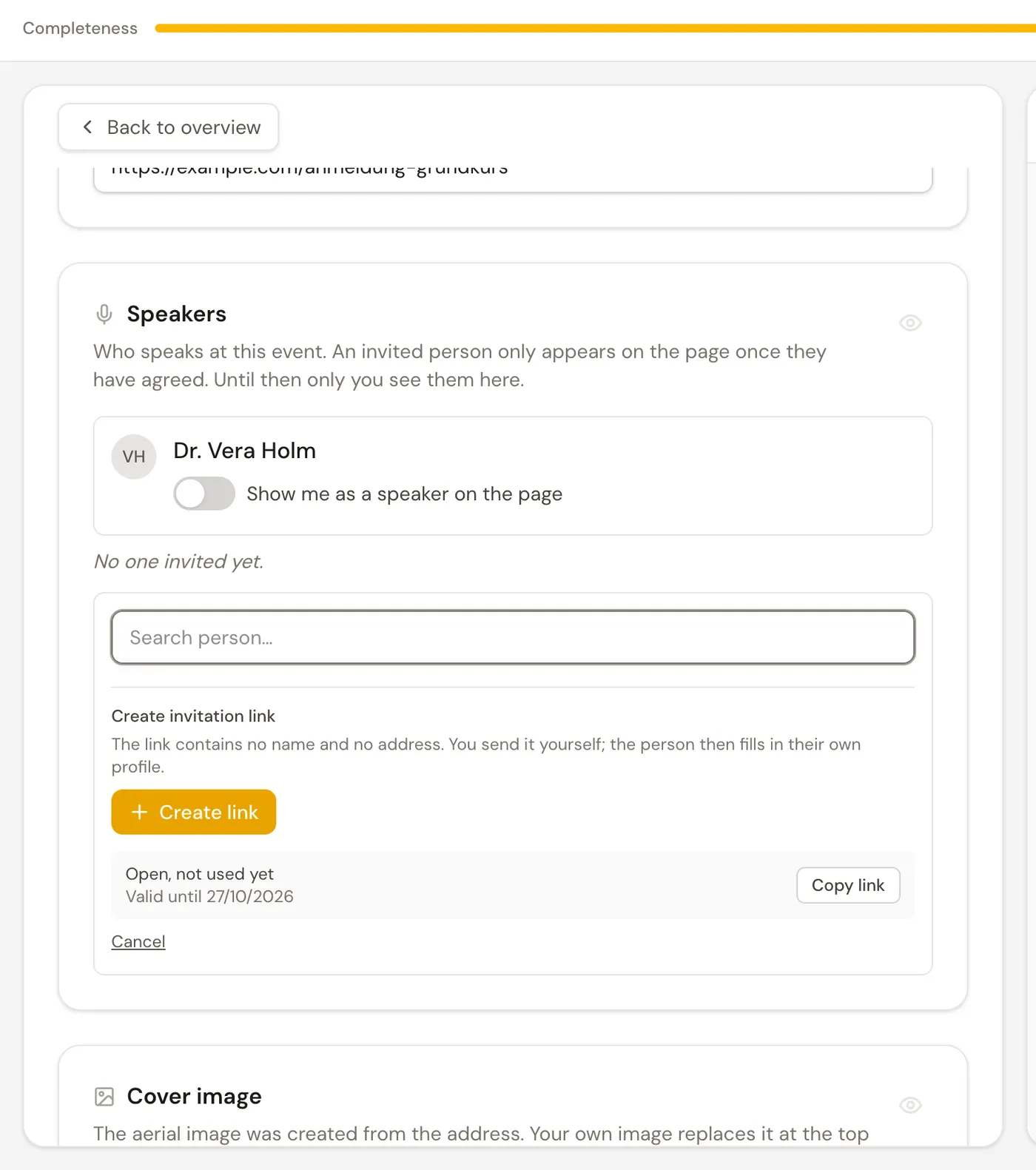
- 1Under Speakers, click Invite speaker. Below the search you will find Create invitation link.
- 2Click Create link. The new link appears below, with the date until which it is valid.
- 3Click Copy link and send it to the person.
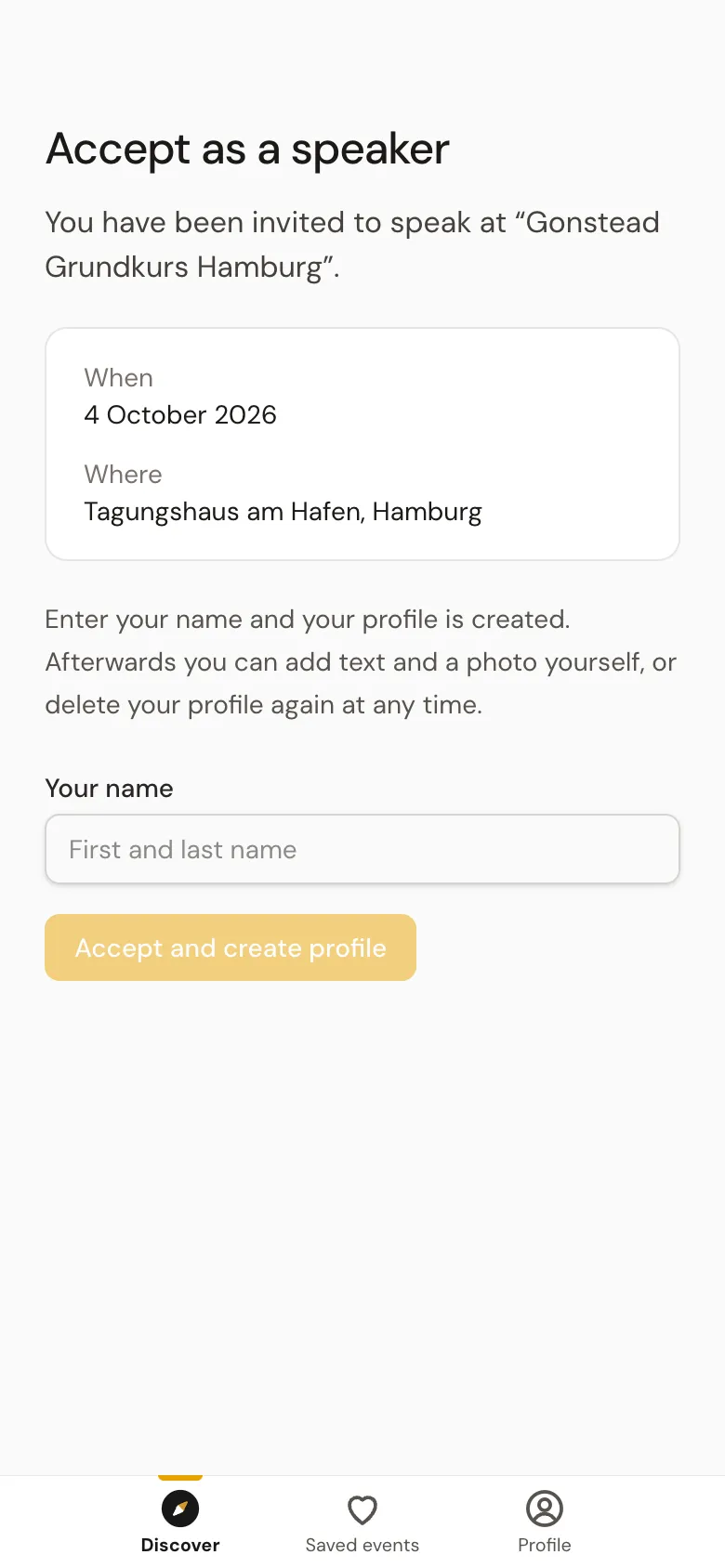
Whoever opens the link sees the Accept as a speaker page with the date and place of your event. The person enters their name and taps Accept and create profile. They do not need an account for this. Their profile is created, and from then on they are listed among your speakers.
3Invite from the inbox
If you are already chatting with a person, you can also invite them in the chat, on a phone or a computer. Tap the plus next to the input field and then Invite to an event. You choose one of your upcoming events, optionally a role and a sentence, and the invitation lands as a card right in the chat.