The inbox at a glance
4 min read · updated 3 October 2026
The inbox collects requests, invitations and messages to all your profiles in one place. You reply right there, just like in a messenger.
1Who has an inbox
You get the inbox as soon as one of your profiles is approved and you are an admin there. If you already have a chat, you keep it too. If you only look for events and bookmark them, you won't see it.
On a computer, you find Inbox on the left in the sidebar of your dashboard. On your phone, tap Inbox in the bar at the bottom. A number on it shows you that unread items are waiting.
2Finding and filtering chats
At the top are your Chats with a search field. With the chips All, Unread, Invitations and Archive you narrow down the list. If you manage several profiles, you choose there which one you want to see, or stay with All profiles.
The search field only searches your own chats. From two characters on, you find names under Chats and passages from the text under In messages. If you tap a message, the chat opens right at that spot.
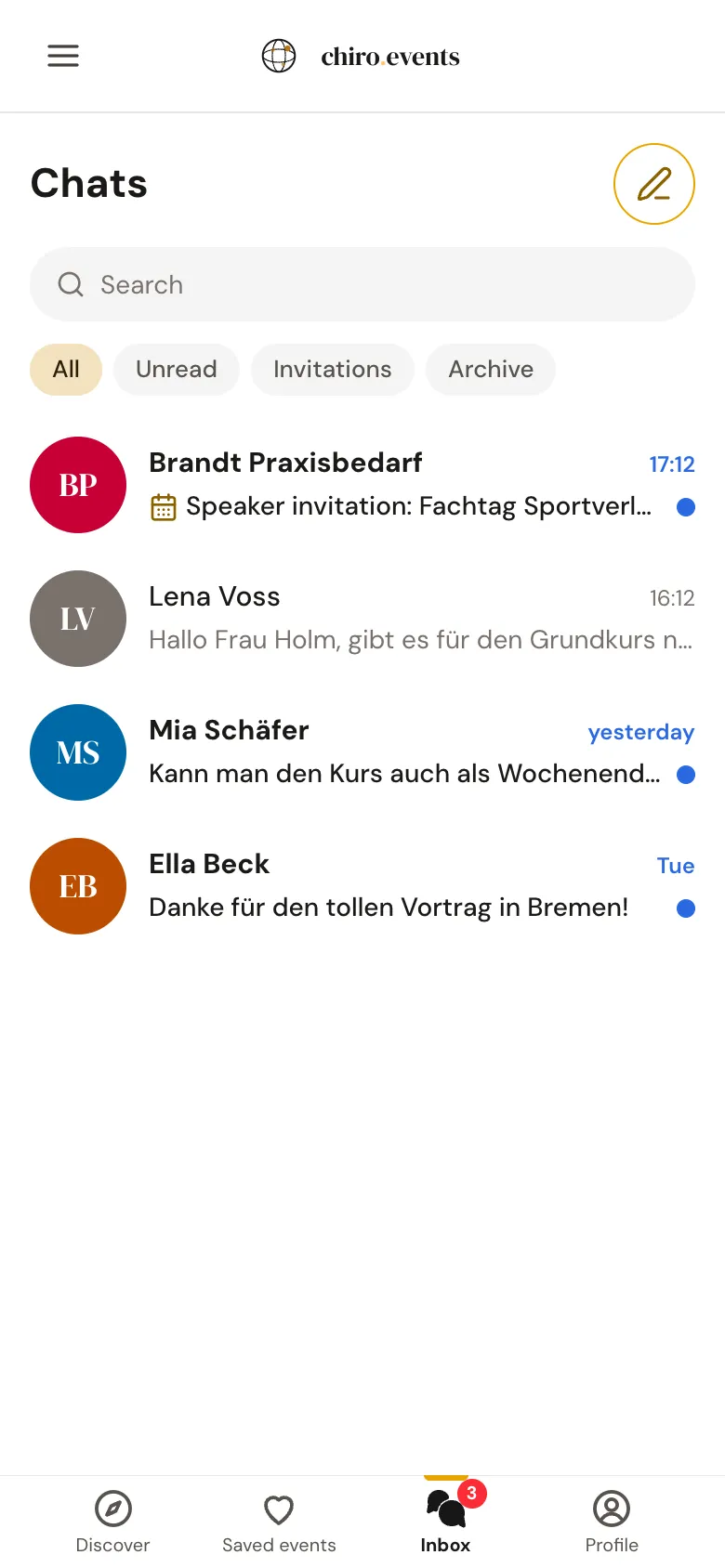
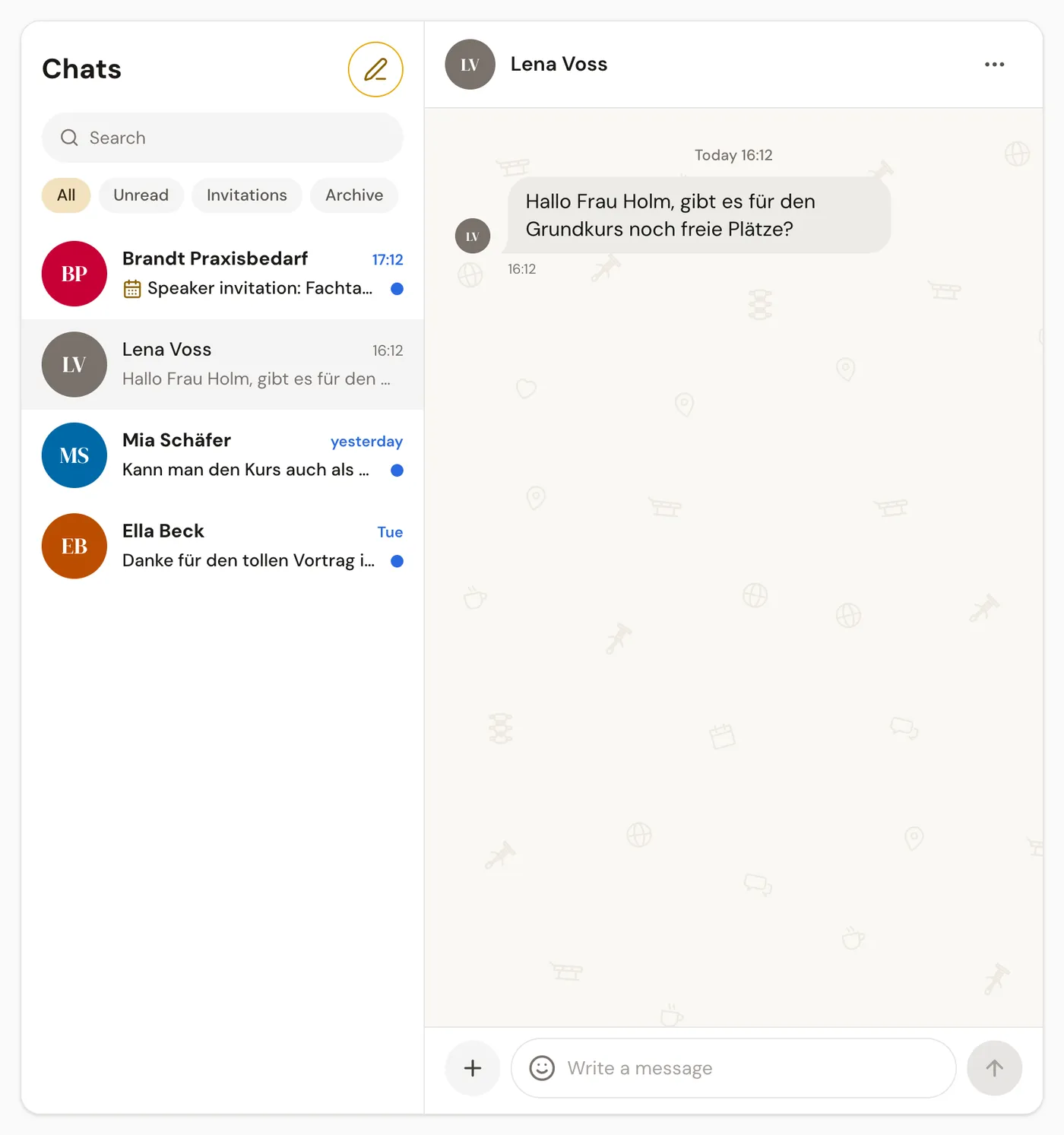
On a computer, the list and the chat sit side by side. On a phone, a chat opens as its own view, and the arrow at the top left takes you back to the list.
You choose how your chats look in your settings, right under Appearance at Chat style: chiro.events with a pattern and golden bubbles or Clear with a white background and calm grey bubbles, and your choice applies to your account on every device.
3Writing and starting a chat
At the bottom of the chat you write your message and send it with the arrow. On a computer, the Enter key also sends, and Shift and Enter start a new line. If you manage several profiles, above the field it says You are writing as with the name of the profile your reply goes out under.
The round pen button next to the heading opens a menu. With New chat you start a conversation yourself: at To you search for the name, at What's it about? you can optionally choose a topic, then you write your message and tap Start chat. New chat is only available if one of your profiles is activated, because chats are always started by profiles.
If you have a profile as an education provider, association or company, the same menu also contains Invite colleagues. It leads to the team page of the profile, and if you are allowed to invite there, the Invite someone window is already open. This creates a link that you pass on yourself; chiro.events does not send an email. With several such profiles, the menu first asks Which team?.
4Finding photos, links and documents again
Whatever was shared in a chat, you find in one place. In a chat between two people, you open Media, links and docs for this in the three-dot menu at the top. There you see the photos by month, the links from the messages and the PDFs. On a computer, the view sits to the right of the chat, on a phone as its own page. If you tap a photo, you see it large, and Show in chat takes you to the message.
5Archiving and blocking
Using the menu with the three dots at the top of the chat, you can Archive it. It disappears from the list and then appears in the Archive chip under Archived. You bring it back with Back to chats in the same menu of the chat. If someone writes to you in an archived chat, it moves back by itself.
If you don't want to hear from someone anymore, choose Block in the same menu. Then the other side can no longer write to you in this chat. You also find blocked chats in the Archive chip, in the section Blocked. There you lift the block again with Unblock right in the row.