Set up your account: mails, language, two-factor
3 min read · updated 30 September 2026
In your Account settings you decide which mails you get, how chiro.events looks for you and how well your account is protected. Whatever you change there applies right away. There is no save button.
On a computer, click your name at the bottom left and then Account settings. On a phone, tap Profile at the bottom, then the gear icon and then Account. On a computer the sections are in a second bar, on a phone they are in a row you can swipe.
1Which mails you get
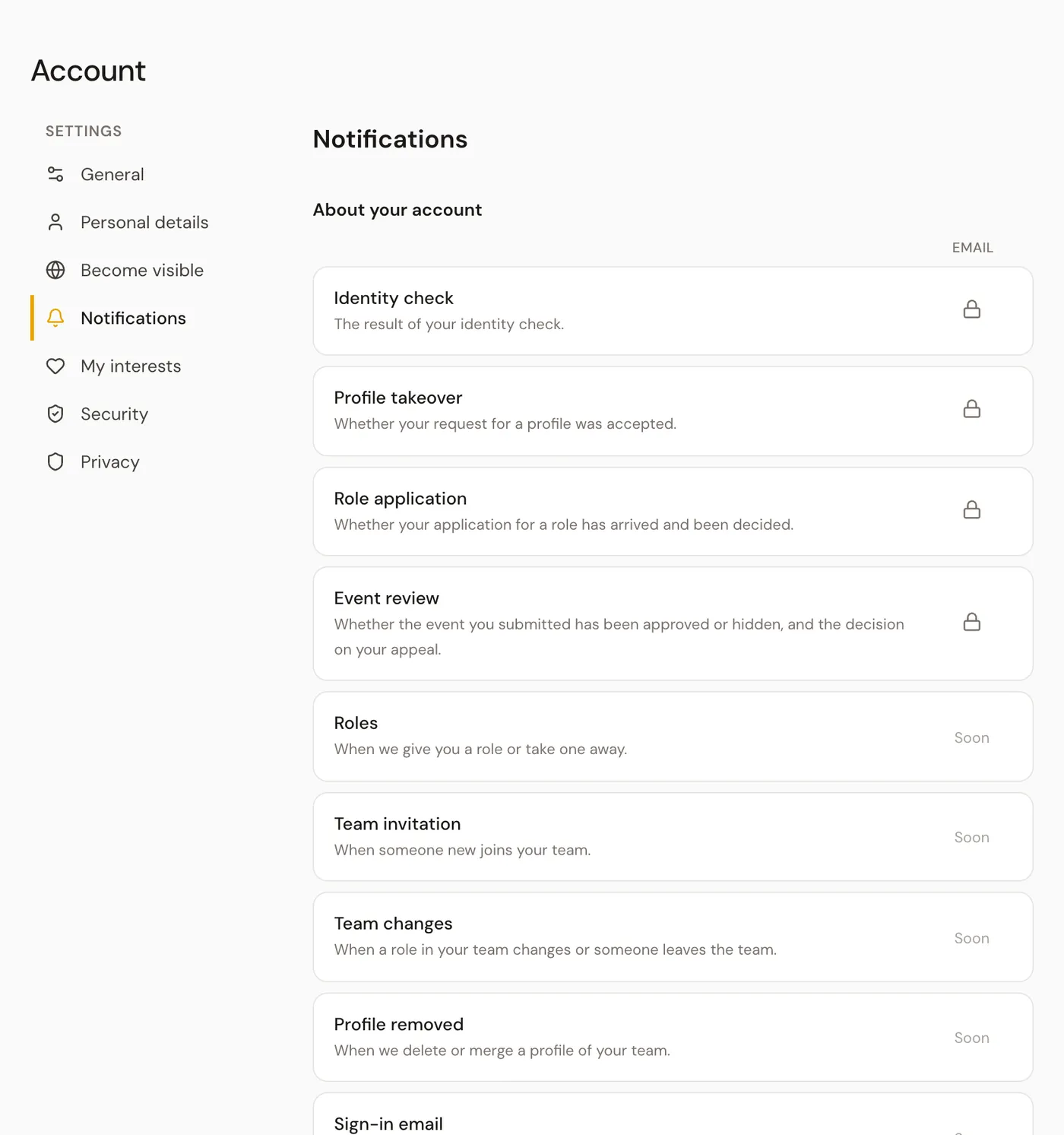
Under Notifications the mails are in three groups: About your account, When someone wants something from you and What happens on the platform. Most types have their own switch. You only see the types that can reach you at all.
Some mails about your account always arrive, for example the result of your ID check. There you see a lock instead of a switch. In your Activity you still see everything, even what you turn off here.
For the Newsletter, choose under How often whether it comes Weekly, Every 2 weeks or Monthly. You set which events appear in it under My interests.
2Language and appearance
Under General, choose the Language at the top: Deutsch, English or Español. Below it, under Appearance, you decide whether chiro.events looks Light, Dark or Auto. Your account area always stays light.
3Set up two-factor sign-in
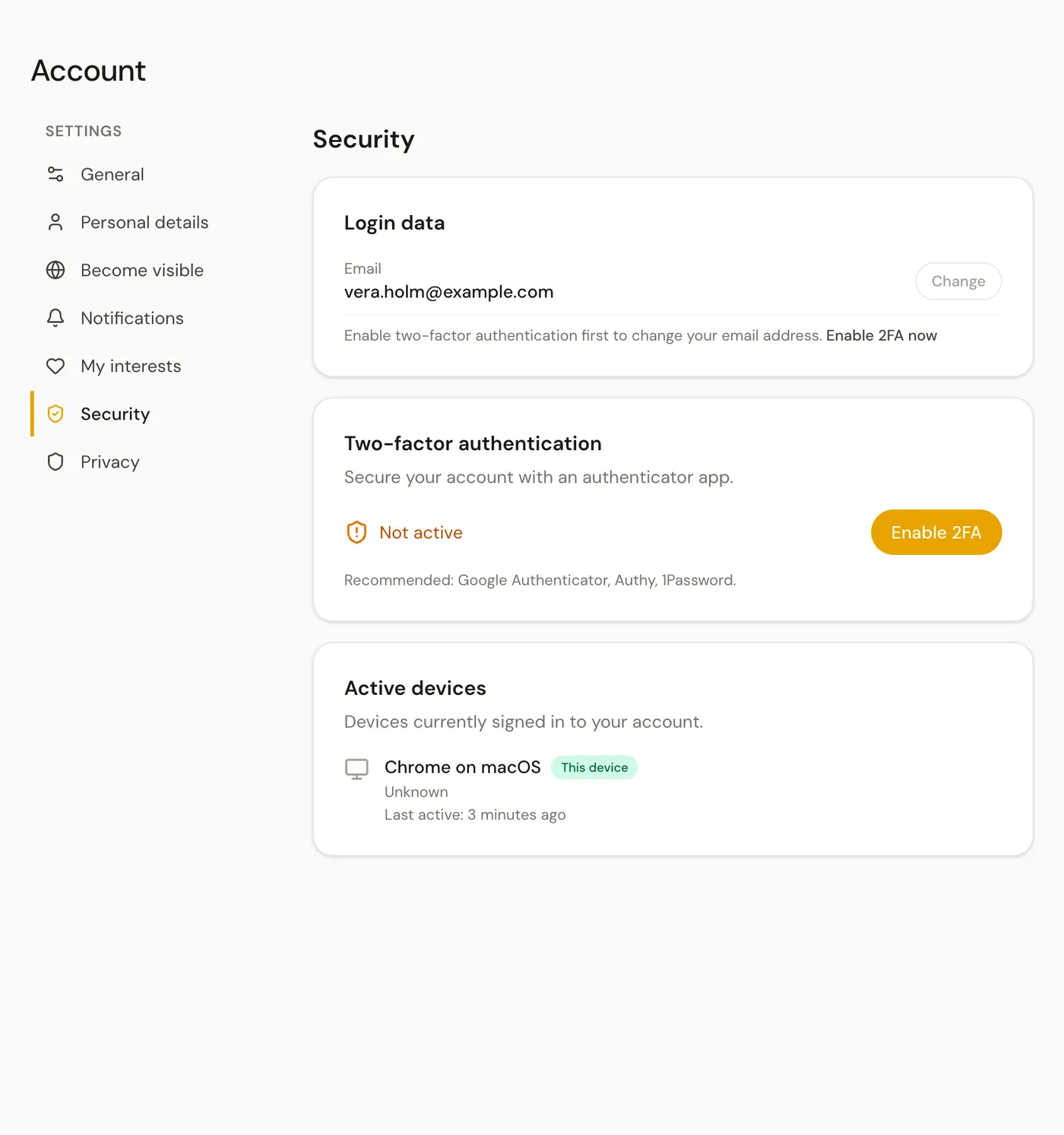
- 1Open Security and tap Enable 2FA under Two-factor authentication.
- 2Scan the QR code with an authenticator app, for example Google Authenticator, Authy or 1Password, and tap Continue.
- 3Enter the six-digit code from the app and tap Verify.
- 4Now you see your Backup codes. Get them with Download codes or Copy all, tick I have saved the codes and tap Finish.
From then on, every time you sign in we ask for the code from the app as well as the code from the mail. If you don't have your phone at hand, choose Use backup code. Each backup code works only once.
4Change your email address
You change the address under Security at Login data with Change. This only works once two-factor sign-in is active. You enter the new address and tap Send confirmation. The address is only switched when you open the link in the mail sent to the new address.