Requests, invitations and recommendations
2 min read · updated 30 September 2026
On chiro.events you contact speakers, associations, education providers and companies directly. Everything that comes out of it ends up in your inbox: replies, invitations and recommendations.
1Sending a request to a profile
On many profile pages there is a Request button at the top. You need an account and your own approved profile for this, because requests always go from profile to profile.
- 1Tap Request. In the first step you choose which of your profiles you write as, then Continue takes you further.
- 2Choose the type, for example Talk or Collaboration, and enter a Subject and your Message. The message needs at least 80 characters, and for a talk a Timeframe is required too.
- 3If you like, use Reply expected by to say when you need an answer. Tick the two boxes at the bottom and tap Send inquiry.
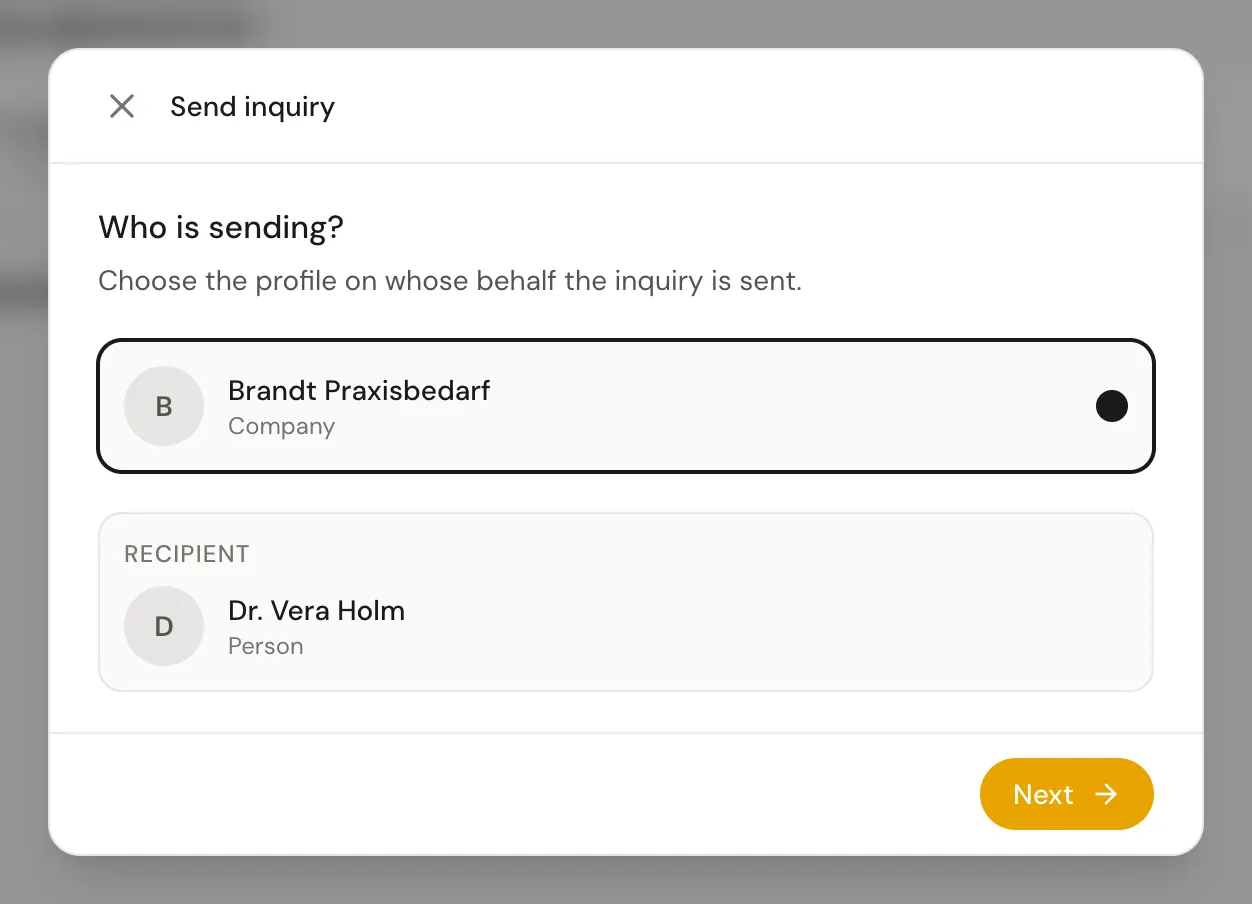
If the button is grey, the profile is not accepting requests right now. For your own profile, you set this in the editor with the Accepts requests switch.
2Replying to an invitation
If an organizer invites you to an event, your inbox shows an Invitation to speak card with title, date and place. Tap Accept or Decline and confirm with Yes, accept or Yes, decline. You can also ask a question in the chat first.
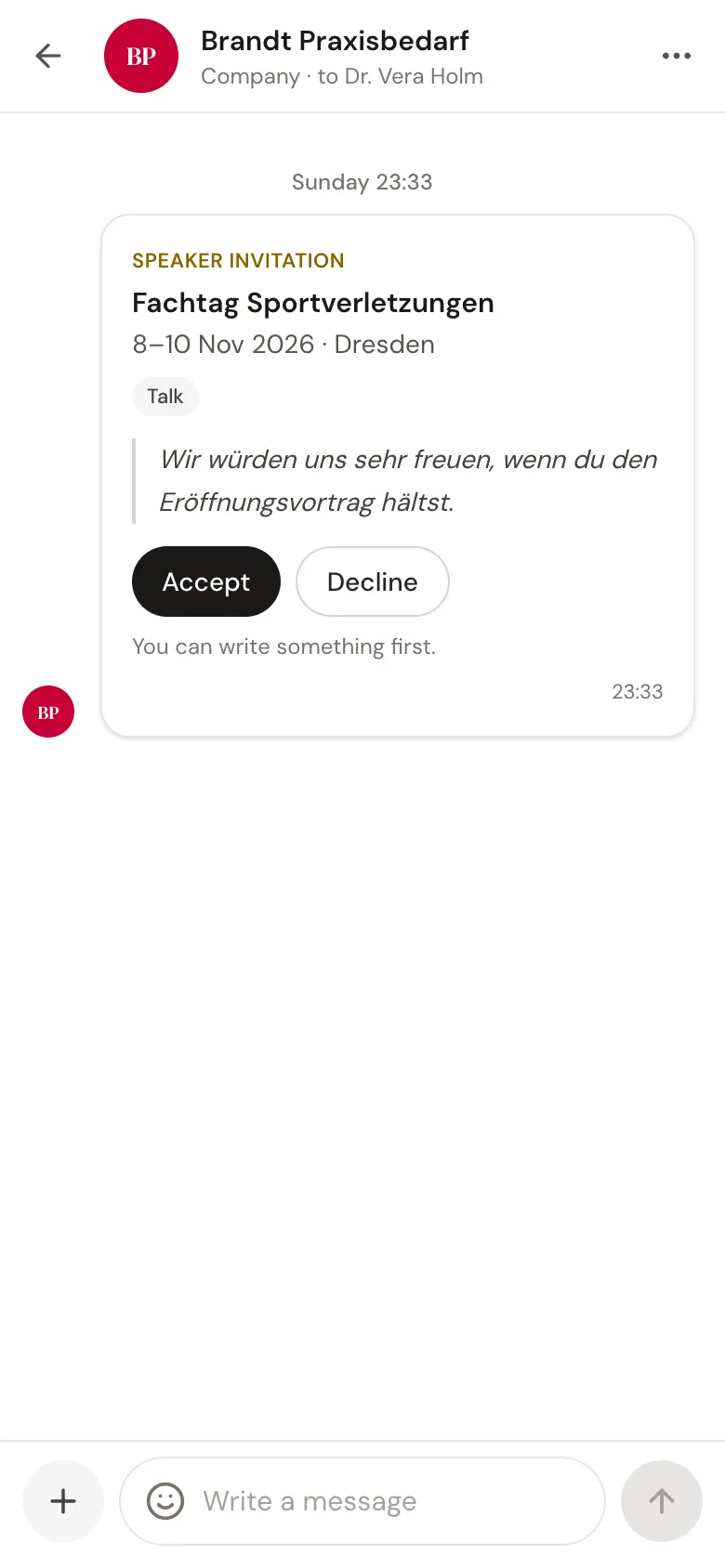
If you made a mistake, Change answer takes you back. With the Invitations chip you see only chats with invitations in your inbox. Open invitations also appear on your profile's events page under Needs you.
3Sharing, inviting and recommending in chat
To the left of the input field there is a round plus. It opens a menu with three options:
- 1Share event sends an event from your Saved events, from My events or from search, with a short note if you like.
- 2Invite to an event invites the other person as a speaker to one of your upcoming events. This only works when you are chatting with a person. The invitation appears as a card right in the chat.
- 3Recommend a profile passes on a person or organization. The other person sees it as a card in the chat.