Edit your profile
2 min read · updated 30 September 2026
You manage your public profile in the editor. This works on desktop and on your phone, for all four types: person, association, education provider and company. Admins of the profile can edit it.
1Open the editor
- 1Open your profile in the overview of your account.
- 2Tap Edit profile. At the top you will then see, for example, Edit person or Edit association.
- 3The first time, a short introduction in four steps shows you how the editor is laid out. Later you can bring it back with How it works.
2Two areas
Basic settings holds what applies to your profile but is not visible on it, such as your username. What others see holds the cards with everything on your page: images, texts, focus areas, links and more. Each card shows how much of it is already filled in.
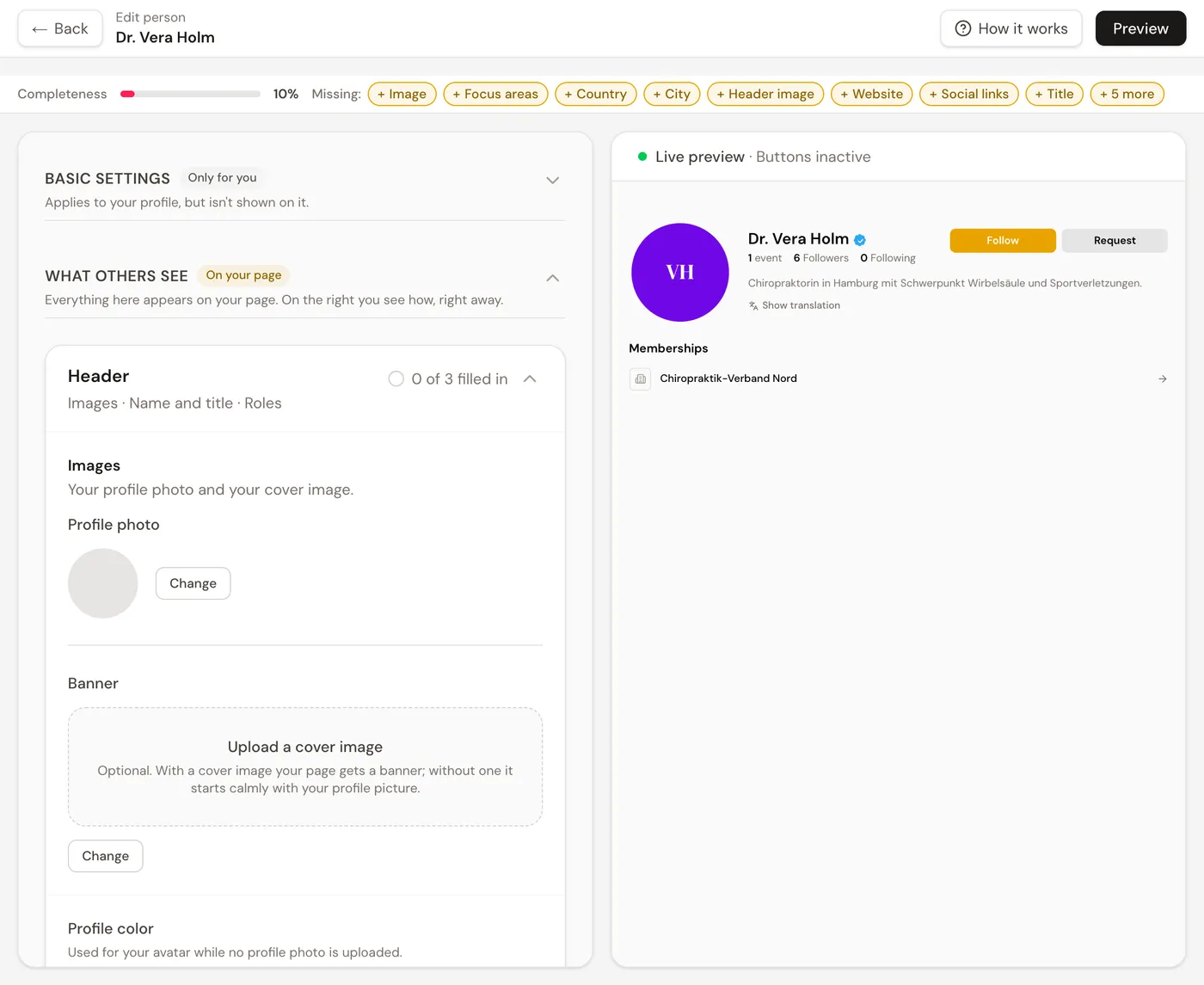
At the top, Completeness shows what is still missing. Tapping a missing item takes you straight to the matching field.
3Preview and save
On a large screen you see on the right right away how your page looks. On your phone and tablet you switch at the top between Edit and Preview. On your phone, each card also briefly shows how the content appears on your page.
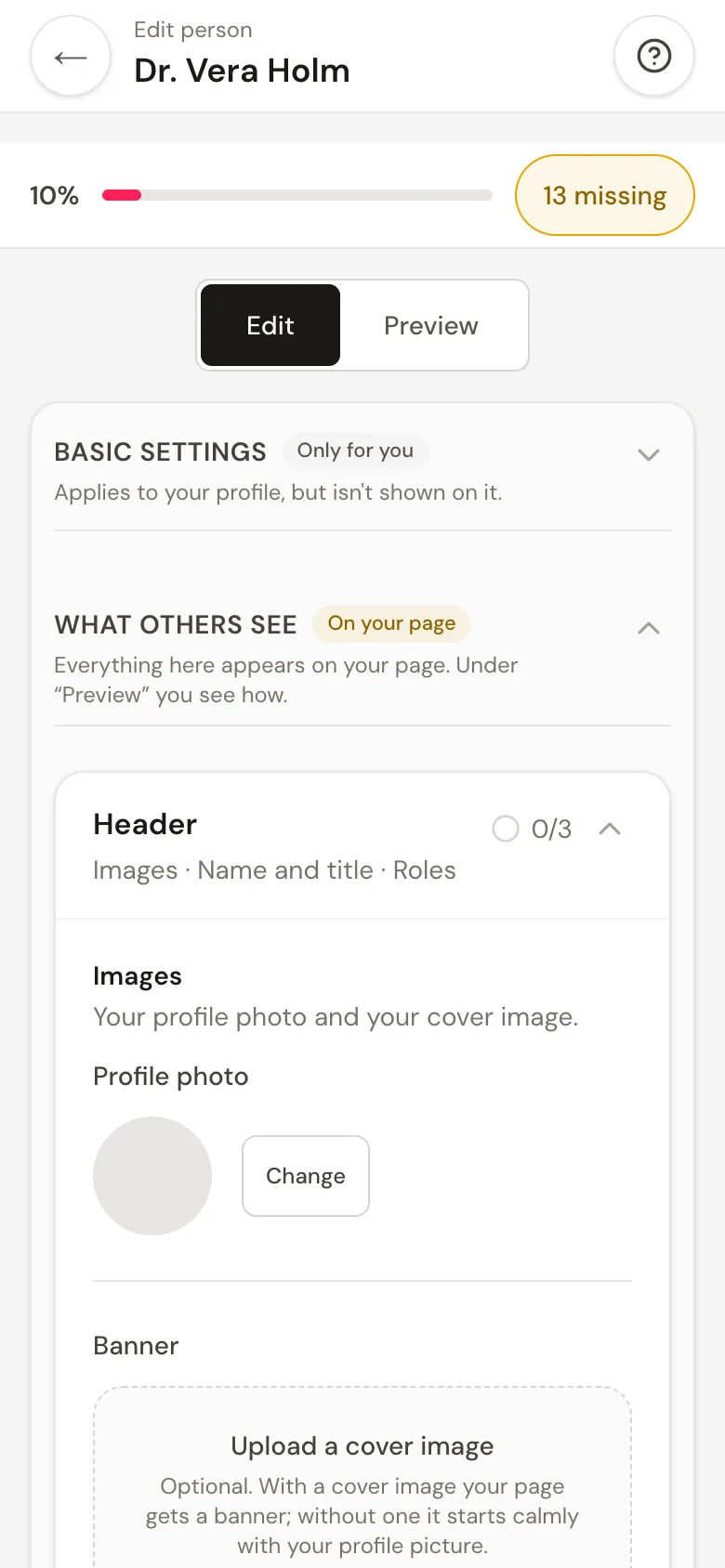
Your changes only appear on the page once you tap Save at the bottom. A few things save automatically right away, for example roles, education, memberships and the username. If you want to leave the editor with unsaved changes, we ask first: Stay here or Discard and leave.
4Your username
Under Your username you choose the short address of your profile, that is chiro.events/yourname. Allowed are lowercase letters, digits, period, hyphen and underscore, 3 to 30 characters. With Use this name the new name applies immediately.