Working together as a team
2 min read · updated 30 September 2026
An association, an education provider or a company is rarely managed by one person alone. With a team, you give others access to your profile, each person with their own role.
1Who can do what
There are three roles. An Admin can do everything: edit the profile, create events, manage the team. An Editor can edit events. A Team member can see the team and the profile but can't change anything. An overview is shown under How it works on the Team page.
2Invite someone
- 1Open the profile in your account and go to the Team section.
- 2Tap Invite someone, enter the Email address and choose the Role.
- 3Tap Create invitation. The invitation is ready appears with a link.
- 4Copy the link and send it to the person yourself, by email, messenger or however you like. We don't send anything. The link is valid for 30 days.
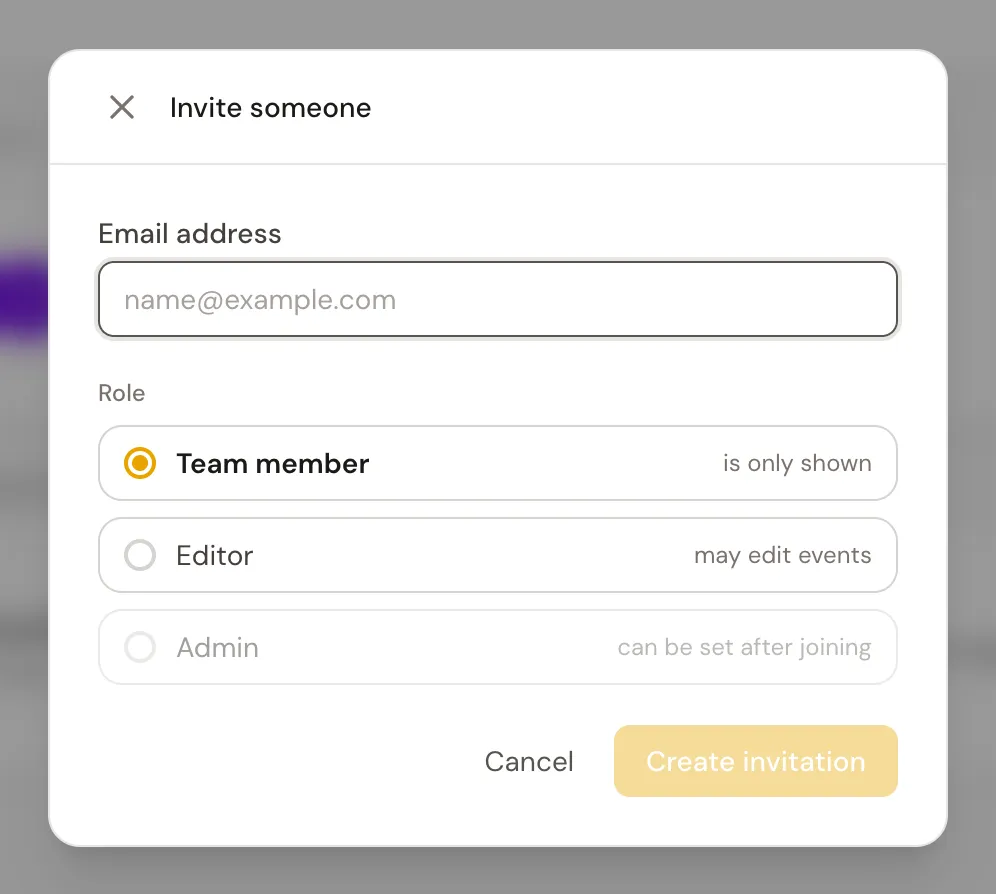
The invited person opens the link, sees You have been invited to a team and taps Accept invitation. After that they are part of your team. Nobody becomes an admin directly through the invitation: you assign that role after they have joined.
3Change roles and leave the team
In the menu next to a person, you can change the role, use Set job title to assign a function such as "Managing Director", or remove the person with Remove from team. In your own row, this spot shows Leave team. Admins can manage the team and leave it; as an editor or team member, you ask an admin to remove you. A profile always needs at least one admin.
4Members of an association
An association also has the section Association members. People add your association in their own profile under Memberships, and under Membership requests you decide with Accept or Decline. Under Settings you can turn on Accept new requests automatically.