Save events and get reminders
3 min read · updated 30 September 2026
Found an event you don't want to forget? Save it with the heart. It lands on your saved events list, and we send you an e-mail before it starts.
1Saving an event
- 1Open the event and tap the heart at the top.
- 2The heart fills in. The event is now on your saved events list.
- 3If you want to remove it, tap the heart again.
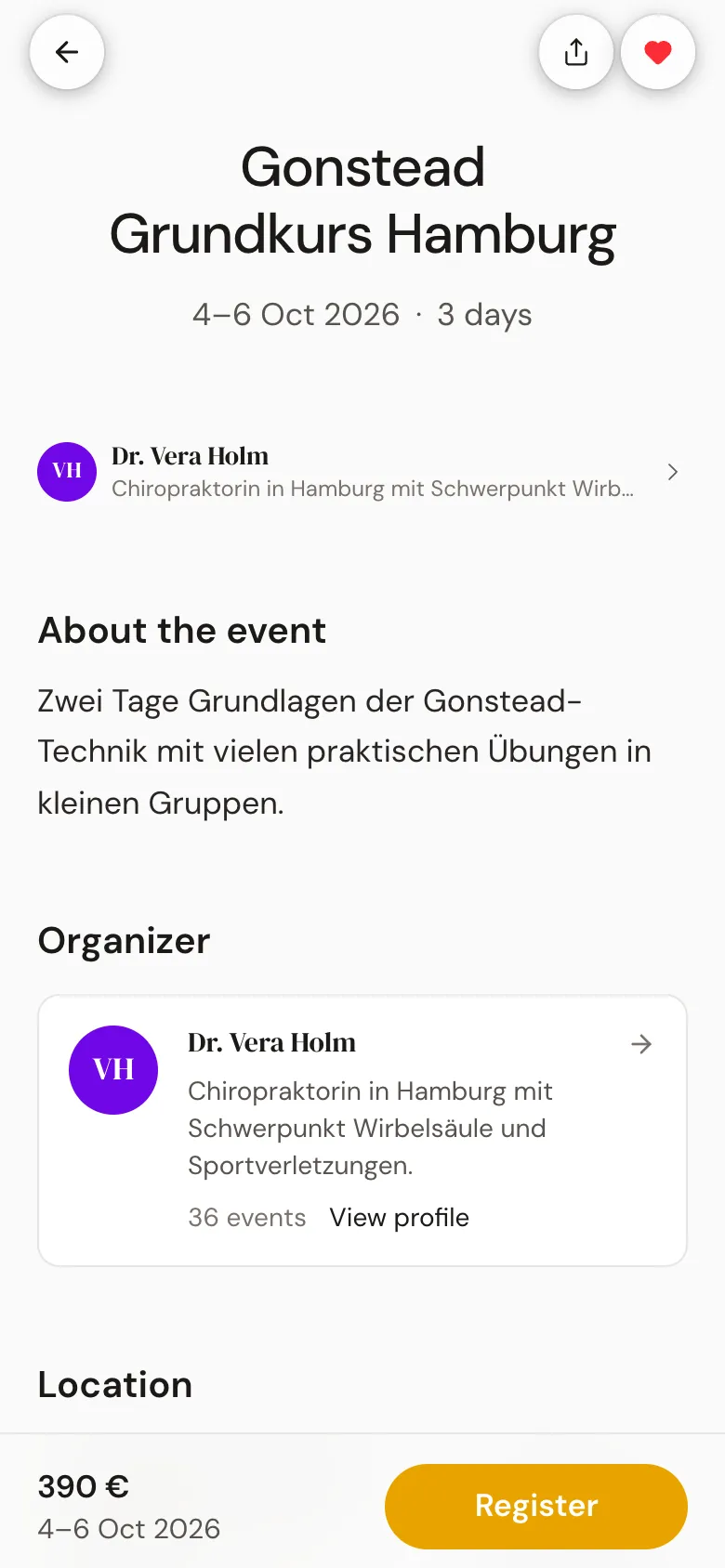
You can save without an account too: the heart fills right away, and the events stay in this browser. With the third event, a small window asks Should we remind you about these events?. With your email address and Send code you create a free account, and your saved events come along.
2Your saved events
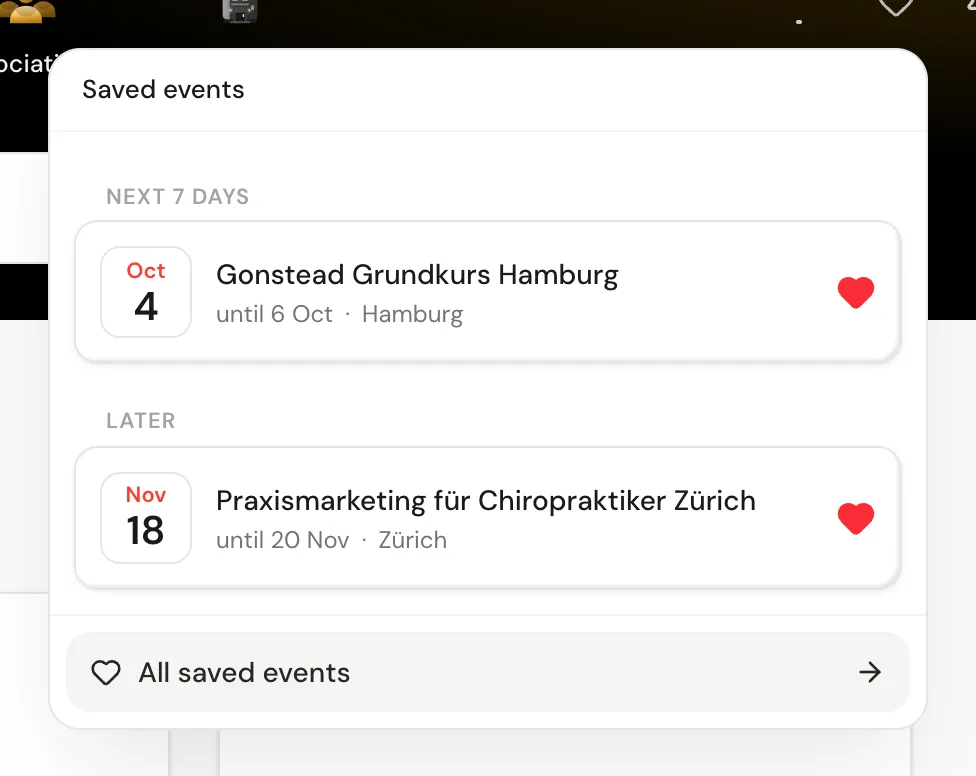
On your phone, tap Saved events in the bar at the bottom. On a computer, the heart at the top of the home page opens your saved events as a small window, and All saved events takes you to the full page. In the dashboard, it is also in the sidebar.
The list sorts your events by date. Past ones move to the bottom, cancelled ones carry the note Cancelled. If an organizer cancels an event you saved, we also let you know.
3Subscribe to your saved events in your calendar
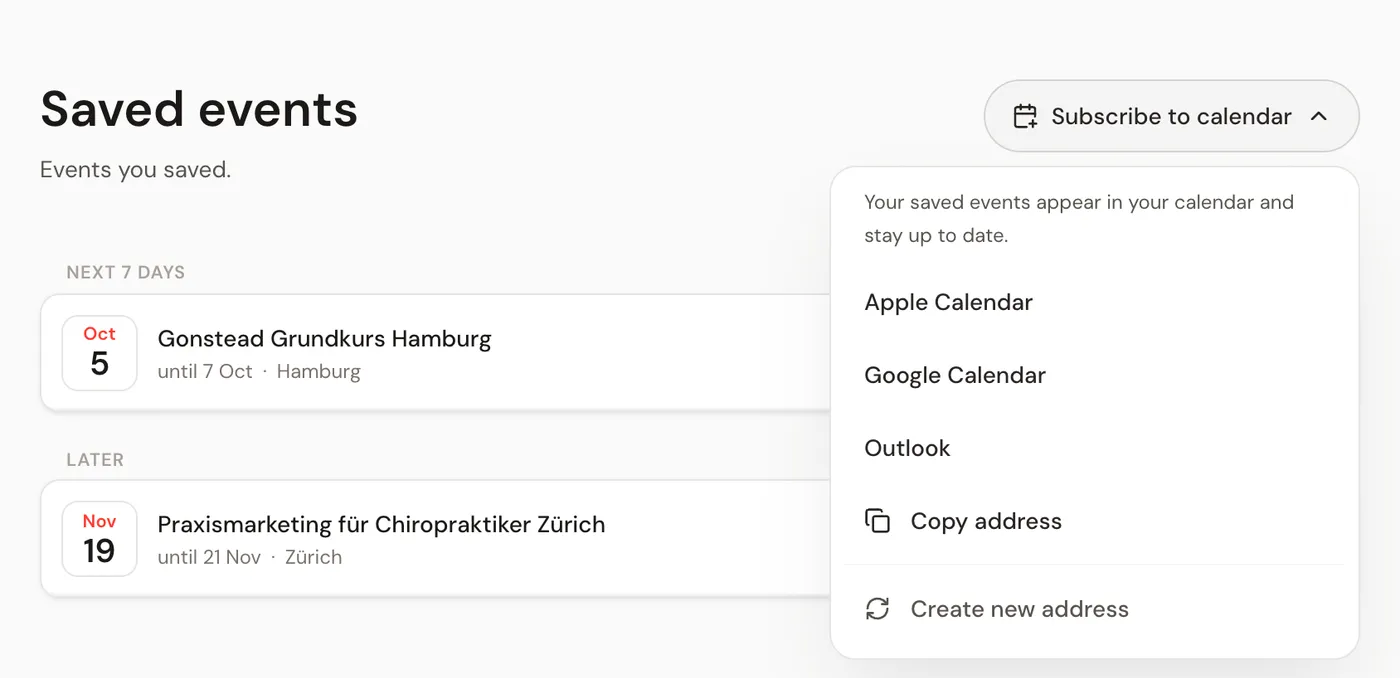
With an account, you can subscribe to your saved events in your calendar. Your saved events then appear there and stay up to date.
- 1Open your saved events: on your phone via Saved events in the bar at the bottom, on a computer via All saved events.
- 2Tap Subscribe to calendar.
- 3Choose your calendar: Apple Calendar, Google Calendar or Outlook. For another calendar, use Copy address and add the address there as a subscription.
4Reminders by e-mail
For every saved event you get an e-mail seven days before and once more one day before. The same applies to your own events and to events where you take part as a speaker.
- 1Open your account settings: on your phone via Profile, the gear icon at the top and Account, on a computer via Account in the dashboard sidebar.
- 2Choose Notifications.
- 3Turn off the e-mail under Event reminder · 7 days before or Event reminder · 1 day before.
It is quicker from the e-mail itself: at the bottom there is Unsubscribe from reminders. The link opens the Reminders page, where you change both times without signing in and tap Save.